

Import data into 5pm
Import CSV & Excel data
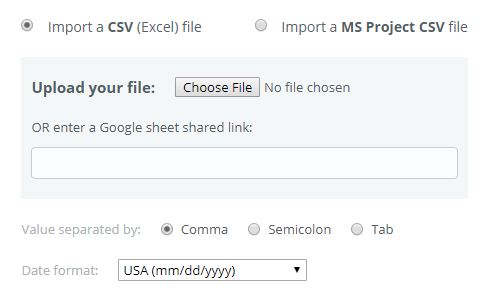
You can import Projects,Tasks and Users from custom CSV, Excel files or Google Sheets. The importing function is located in the "settings" menu on the top.
When you import the file data, make sure you select the correct field separation values and date format. If you make a mistake, you will be able to return to the first step of the import and make the corrections.
Below is a very simple example of a list of Tasks to be imported:
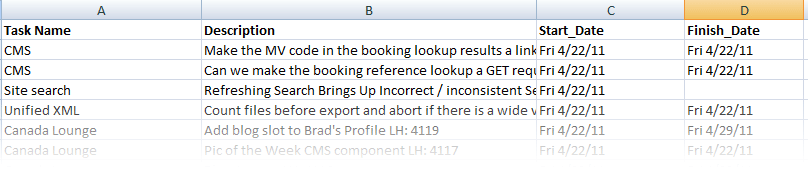
As you notice, there is no indication here what is imported — tasks or projects. When this information is missing, the lines are imported as single tasks (tasks outside projects) OR you can choose the project to import them into at the end of the import. You can also drag them later into any project inside 5pm.
You can also indicate in the file the projects to import the tasks into by including the Type column, with the values "project" or "task" respectfully.
The tasks below the project line will be included into that project:

You can have multiple project/tasks line blocks in one file.
5pm will try to detect the type of data in your columns using the data format and the header names (if present). Adding the column headers helps 5pm to detect and match the fields from your file to those in 5pm. Below are listed the reserved names for all the possible fields that can be imported:
| Field Name(s) | Possible Values | Default value | Required |
|---|---|---|---|
| Type | "task", "single task", "project" | "task" | no |
| Name, Title, Task Name, Task_Name, Topic | any text | "-" | yes |
| Status, State | "open", "done", "on hold", "complete", "in progress", "archived", "not started", "closed" | "open" | no |
| Priority, Level | "low", "normal", "critical", "high", "urgent" | "normal" | no |
| Start, Start Date, Start_Date, StartDate, Starts, Begins, Begin | possible formats: mm/dd/yyyy, dd/mm/yyyy | current date | no |
| End, End Date, End_Date, Deadline, Ends, Finish, Finish_Date, EndDate, Due Date | possible formats: mm/dd/yyyy, dd/mm/yyyy | - | no |
| Estimated Time, Duration, Hours, Estimated, EstTime, | a number, in hours by default (can be followed by "hrs", day(s), week(s), month(s)". Ex: 1.5 means 1 hour 30 mins | - | no |
| Hours Done, Hours Spent, Spent, Spend, HoursDone, | a number, in hours. Ex: 2.25 means 2 hours 15 mins | - | no |
| Description, Desc, Notes, Details | any text | - | no |
| Parent | name of the parent task | - | no |
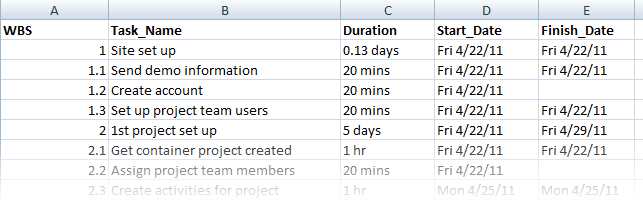
| WBS | number like: 1, 1.1, 1.2, etc. a MS Project field. | - | no |
| Progress, % Complete, %Complete, % | an integer number, can be followed by "%" | - | no |
| Group, Groups, | any text | - | no |
| Owner, User, User Name, Owner Name, Created By, Created | user in format : "John Smith<john@coolmail.com>" | importing user | no |
| Team List, Assigned To, Teams, Users, Team Members | users in format : "John Smith<john@coolmail.com>", separated by commas | - | no |
| Client, Clients | user in format : "John Smith<john@coolmail.com>" | - | no |
| Mark, Marks | "0", "1", "2" or "3" | 0 | no |
| Hidden, Hide, Invisible, Not Visible | "0", "no" or "false" (for "not hidden") any other value is considered "hidden" | 0 | no |
| newTags | list of tags separated by commas | - | no |
When the "Type" column is missing, 5pm assumes that Tasks are being imported.
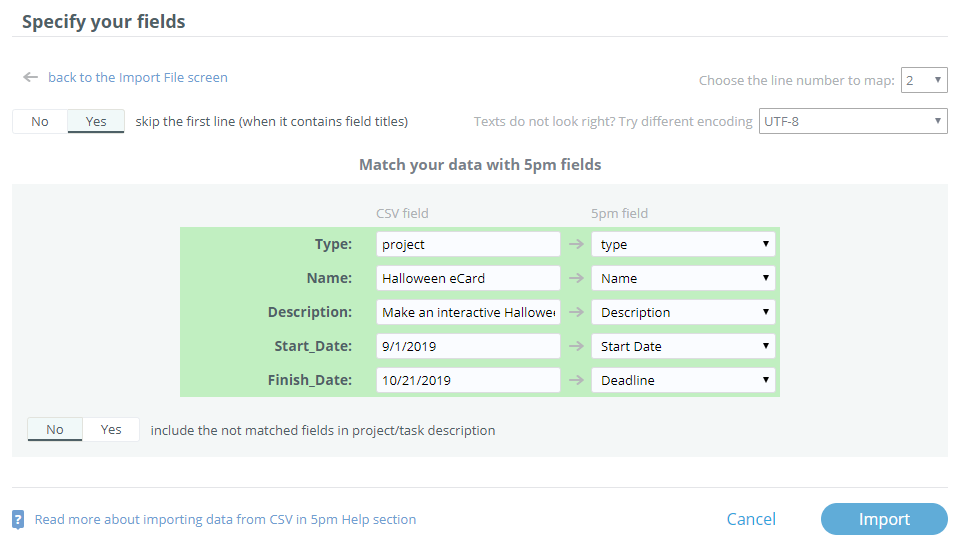
Do not worry getting the data totally right at the first try. At the second step of the import, 5pm will give you the possibility to re-map your fields to the correct values.
To import tasks into an existing project you still have to include the project line (type="project") that matches the name of an existing project. Any other fields besides the name will overwrite the existing field values in 5pm. Here is an example of a CSV containing projects and tasks.
To get a better idea on how to format the data in 5pm-friendly CSV format (so no manual field mapping needs to be done on importing) use General Report > Export to CSV.
newYou also can import all the unmapped fields into the Description field in 5pm.
At the next step you will see the info about the data that is going to be imported, and also any field errors. You can always go to the previous steps and correct the data in the file or re-map the fields.
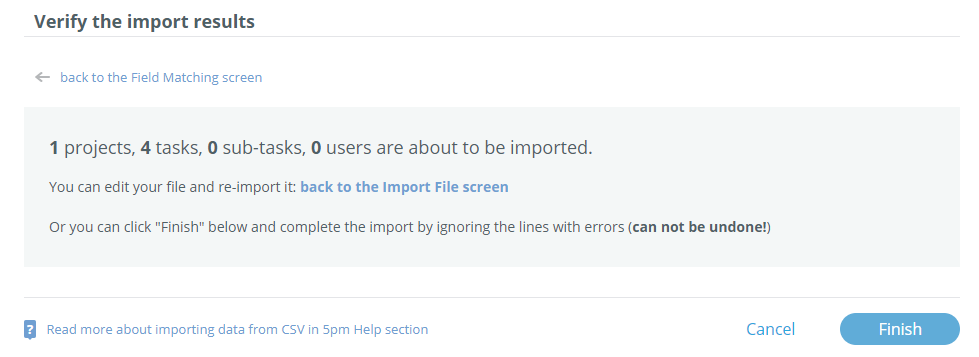
Only after you confirm the import, the data will actually be imported into 5pm. This final step is irreversible!
Import MS Project (CSV) data
The import function is located in the "settings" menu on the top of your 5pm screen.
The MS Project file has to be in CSV format. It is imported exactly the same as other CSV files, just make sure to select the "MS Project" option. Below is an example of a simple MS Project (CSV) file
Import Basecamp Classic (XML) data
If you are using Basecamp project management app (from 37Signals) and are looking into migrating your data into 5pm — this feature is for you!
The import function is located in the "settings" menu on the top of your 5pm screen.
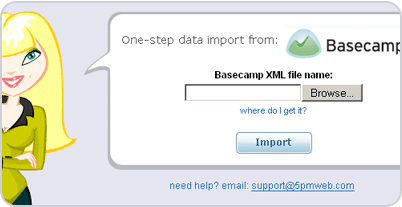
The import is self-explanatory — simply follow the steps.
Import data from another 5pm account
You can also easily import data from another 5pm account:
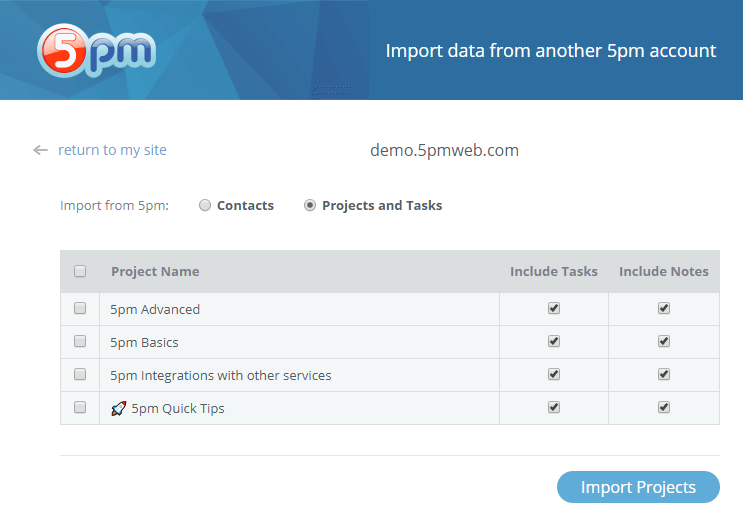
The importing function is located in the "settings" menu on the top of your 5pm screen.